15 Google Business Profile Updates That Bring in More Calls
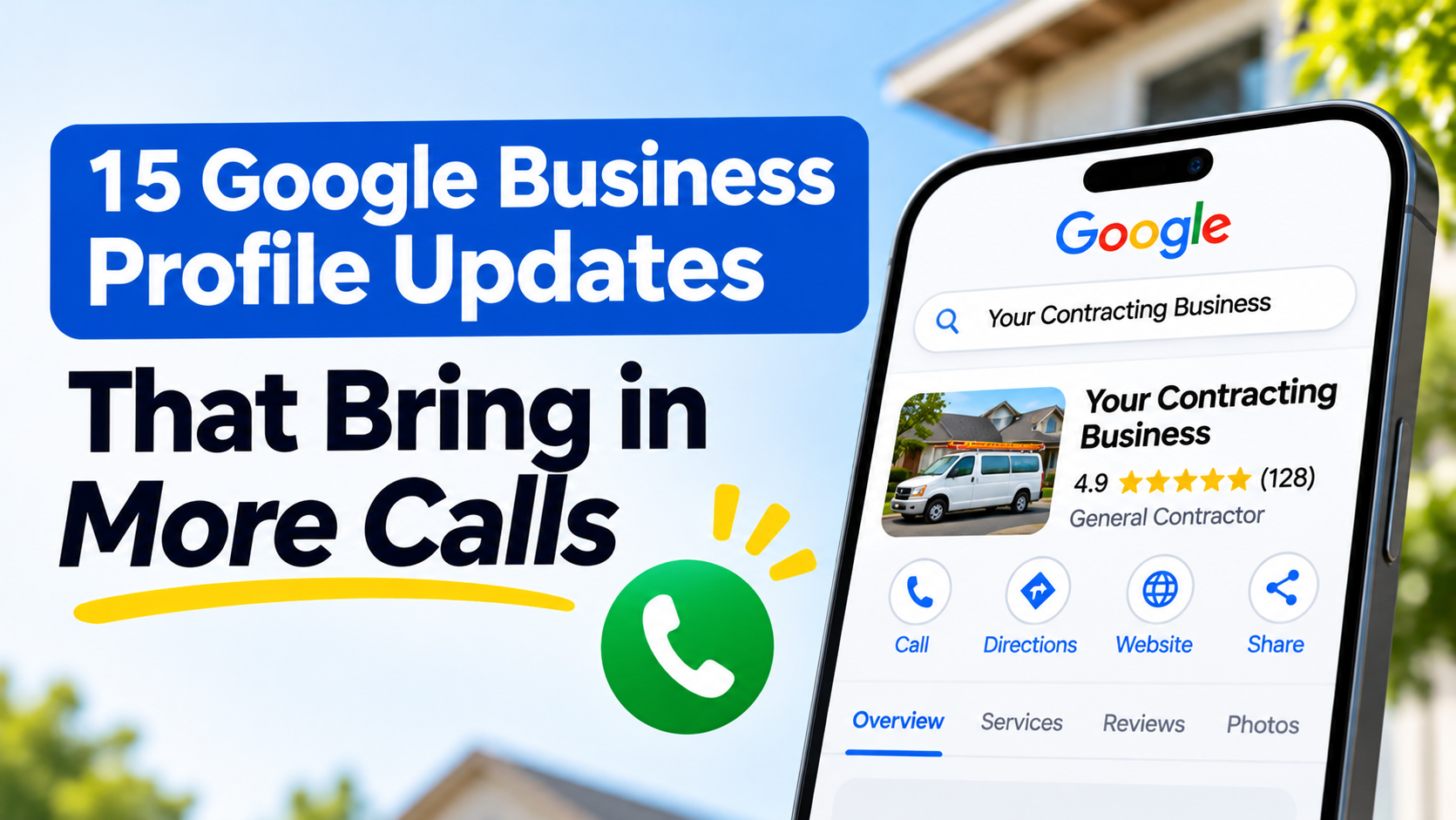
Your Google Business Profile works around the clock. At 10 p.m., while you’re off the clock, it’s answering the questions every new customer asks: Are they open? Do they do this kind of work? Can I trust them? The difference between a profile that sends you a few calls and one that keeps your phone ringing usually isn’t a secret trick. It’s a set of small updates most owners never get around to.
Here are 15 of them, grouped from basic fixes to ongoing habits. Google doesn’t publish exactly how profiles are ranked, and it adds and removes features regularly, so treat these as ways to make your profile more complete, trustworthy, and easy to act on, not as guaranteed ranking hacks. Features also vary by business category, so if you don’t see an option in your profile, it may not be available for your type of business.
Before you start: search for your business the way a customer would, on your phone, and tap through your own profile. Notice what’s missing, what’s wrong, and what you’d want to know if you were a stranger. That list is your to-do list.
Part 1: Get the Basics Right
1. Check Your Primary and Secondary Categories
Your primary category tells Google what kind of business you are, and it shapes which searches you can appear in. Make sure it describes your main business, not a side service. Then add secondary categories for other things you truly offer. If you’re a general contractor who also does decks, for example, a deck-related secondary category can help you show up for those searches. Keep every category honest, and skip ones that don’t apply.
2. List Every Service You Offer
Customers often search for a specific service, not just a business type. Open the services section and add each one you offer, with a short plain-language description and a price or price range if you can. “Water heater replacement: tank and tankless, same-day installs available” tells a customer far more than “plumbing.” A complete services list also lets visitors confirm in seconds that you do what they need.
3. Keep Hours Accurate, Including Holidays
There’s nothing more frustrating to a customer than driving to a closed door or calling a business that never picks up. Confirm your regular hours and add special hours for holidays and any days you’ll be closed. If you offer after-hours or emergency service, reflect that only if it’s true, and say it clearly in your description.
4. Rewrite Your Business Description
You get room for a description of up to 750 characters, and most people only see the first couple of lines, so lead with what matters. Say who you are, what you do, where you do it, and what customers love about working with you. Here’s a simple template:
“[Business Name] is a [type of business] serving [city and nearby areas] since [year]. We specialize in [top two or three services] and we’re known for [on-time arrivals, honest pricing, friendly service]. Call us at [phone] to get started.”
Write it for customers, not for search engines. Google’s guidelines don’t allow promotions or keyword stuffing in the description, and an awkward, keyword-packed paragraph doesn’t make anyone want to call.
5. Make Your Service Area Accurate
If you travel to customers, list the cities, ZIP or postal codes, or regions you actually serve, and keep that list current. If you’ve expanded, add the new areas. If you’ve stopped serving somewhere, remove it. If customers don’t visit your address, Google asks you to hide it from public view. Being accurate here means the calls you get come from places you can really reach.
Part 2: Make It Easy to Call, Book, and Click
6. Make Sure Calls Actually Get Answered
The call button is the most valuable button on your profile, and it only works if someone picks up. Check that the number listed is correct and monitored. Call it from a different phone to see what a customer hears. If you can’t answer every call, set up a missed-call text-back or a clear voicemail greeting that promises a callback.
A note on outdated advice: Google discontinued the chat and call-history features in Business Profiles in July 2024, so guides telling you to “turn on messaging” are describing something that no longer exists. To track your calls, use your phone provider’s call logs or your profile’s performance numbers.
7. Add a Booking or Appointment Link
If you take appointments, make it easy to book from your profile. Depending on your category, Google may let you add an appointment link or connect a booking partner. If you see the option, use it. Every extra step between “found you” and “booked” costs you customers, and some people would rather book online than call.
8. Point Your Website Link to the Right Page
Don’t send customers to a cluttered homepage if you have a better option. If your profile is mainly about one service, link to the page for that service. Make sure the page loads fast on a phone and has a click-to-call button near the top. Also add your social media profile links so customers can see more of your work, and so your brand looks consistent everywhere.
9. Fill In Your Attributes
Attributes are small details such as accessibility features, payment methods, online estimates, or identity labels like women-owned or veteran-owned. The options depend on your category. Fill in every one that applies, because these details help customers decide quickly and answer questions they might not think to ask.
Part 3: Show That You’re Active and Trusted
10. Add Fresh Photos Every Month
Photos are often the first thing people look at. Upload real pictures of your team, your vehicles, finished work, and the inside and outside of your location. Avoid generic stock images, since customers can tell. A good habit is to add a few new photos each month, right after finishing a good job. Customers can also upload photos of their own, so keep checking that what appears represents you well.
11. Add a Few Short Videos
A quick clip can say more than a paragraph. Try a 20-second walk-through of your shop, a before-and-after of a recent project, or a friendly intro from the owner. Keep them short, steady, and well lit. You don’t need professional equipment, just a phone and a clear view of the work.
12. Post Updates Regularly
Google Posts let you share updates, offers, and events directly on your profile. Use them for seasonal reminders, recent projects, new services, and limited-time offers. A few tips:
- Keep each post short, with a clear photo
- Add a button like “Call now” or “Learn more”
- Aim for about one post a week, which is plenty
Posts show customers that your business is active right now, and they give you a chance to remind people why you’re worth calling.
13. Keep New Reviews Coming In
Reviews are often what tip a customer from “maybe” to “let’s call.” A strong rating matters, but so does recency: a profile with reviews from this month looks alive, while one whose latest review is two years old looks forgotten. The fix is to ask every happy customer, every time. Our guides on how to ask customers for Google reviews without being annoying and 25 review request templates for SMS and email will help, and Google review automation can send requests after every job for you.
14. Reply to Every Review
Replying to reviews shows future customers that a real person runs the business and cares. Thank people who leave positive reviews, and respond calmly and professionally to negative ones. Aim to reply within a day or two. Keep replies short, use the reviewer’s name, mention something specific from their review, and never share private details about a job. If you’re curious how reviews affect your visibility, read our guide on whether Google reviews help SEO and Google Maps rankings.
Part 4: Answer Questions Before Customers Ask
15. Put Your Most Common Answers Where Customers Can See Them
Before calling, customers wonder the same things: Do you offer free estimates? Do you take my insurance? Are you licensed? Do you handle emergencies? Google has been changing how questions and answers work on Business Profiles, so don’t depend on one feature to carry this. Instead, work the answers into places you control:
- Your services descriptions (“Free estimates on all roofing jobs”)
- Your business description
- A short FAQ page on your website that your profile links to
- Your attributes, where they fit
If your profile currently has a questions feature, keep an eye on it and answer anything customers ask. Either way, every question you answer in advance is one less reason for someone to hesitate before calling.
Quick Wins vs. Ongoing Habits
Not sure where to begin? Use this table to split the work.
| Do once (about an hour) | Do monthly | Do weekly |
|---|---|---|
| Categories, services, hours, description, service areas, attributes, website and booking links | Add new photos and a short video | Post an update, reply to new reviews, send review requests |
If you only have 15 minutes today, update your services (#2) and check your hours (#3). Those two fixes alone can prevent a lot of wasted calls and missed ones.
How to Tell Whether It’s Working
Your profile’s performance numbers show how many people called, clicked to your website, or asked for directions. Check them once a month and note the totals in a simple spreadsheet. Give each change a few weeks before judging it, since results build gradually. If calls are rising, keep going. If they’re flat, look at your photos, reviews, and answer rate first. Often the problem isn’t that people can’t find you, it’s that they don’t feel sure about you yet.
Mistakes That Can Hurt Your Profile
- Changing your business name to include keywords. Google expects your real-world name, and keyword stuffing can get a profile flagged or suspended.
- Buying or faking reviews. It violates Google’s policies and puts your whole profile at risk.
- Letting information go stale. Wrong hours or an old phone number cost you customers every day.
- Posting once and disappearing. A profile that looks abandoned doesn’t inspire confidence.
- Ignoring suggested edits. Customers and others can suggest changes to your listing, so check for them regularly and make sure nothing inaccurate gets through.
Final Thoughts
A profile that brings in calls isn’t the result of one big move. It’s a complete, accurate listing that’s kept fresh, backed by reviews that show other people trust you. Start with the quick fixes in Part 1, tackle the call-and-booking improvements in Part 2, and turn the habits in Part 3 into a weekly routine. Within a few weeks, your profile will look noticeably more alive than most of your competitors’.
If you want the review side to run on its own, you can try ReviewCatch free for 14 days. It sends review requests automatically and helps you reply to reviews, so you can spend your time on the work that fills your calendar.