How to Create and Use a Google Review Link and QR Code in 7 Steps
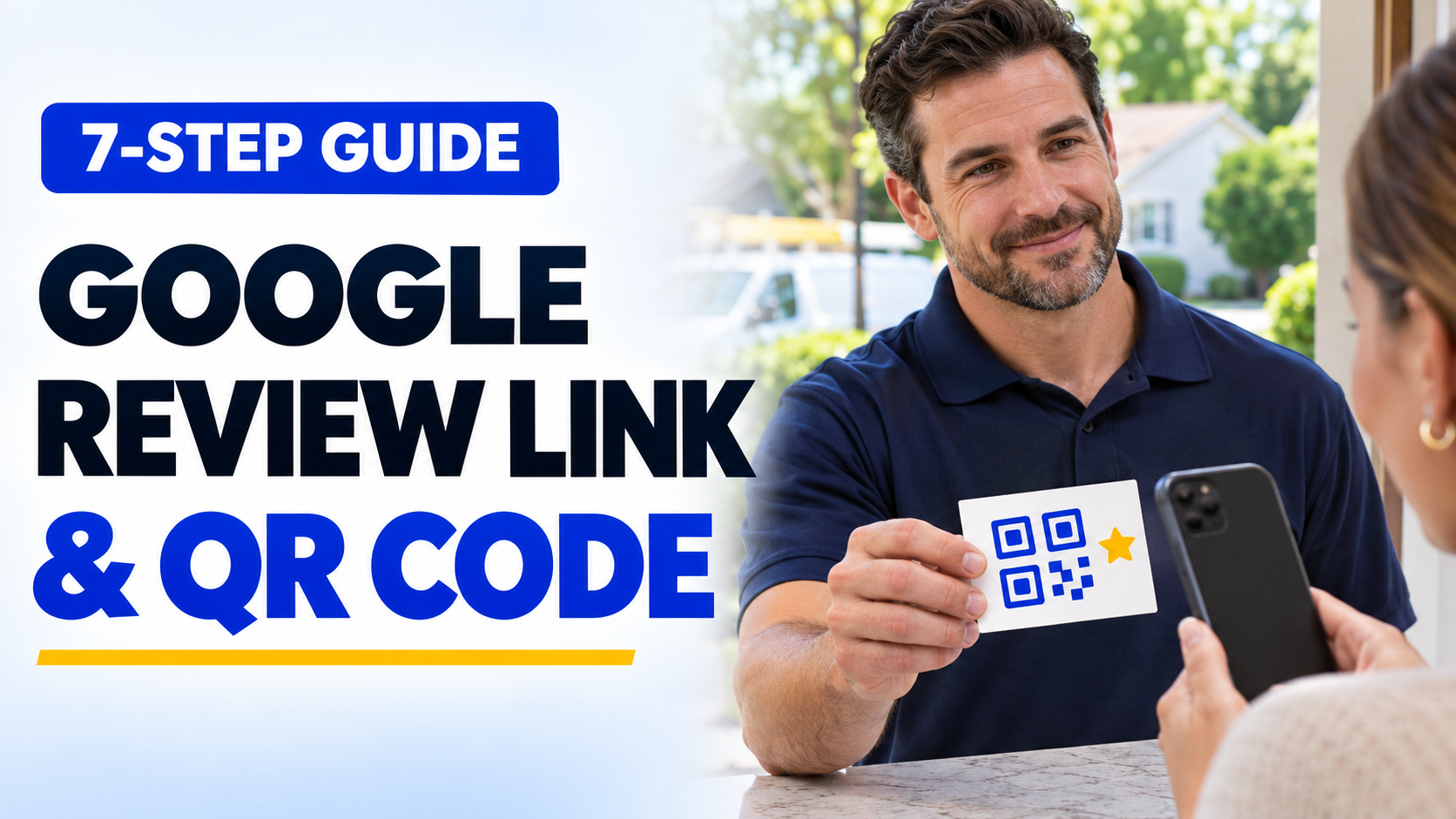
When someone agrees to leave your business a Google review, you want them to be able to do it without searching for your business name or figuring out which listing belongs to you.
Imagine a homeowner who just had their furnace repaired. They're pleased with the service, but they also have dinner to make, children to pick up, and half a dozen other things to do. If you can send them a link that takes them straight to the review form, you've removed an unnecessary task from their day.
You can find both options in the same place. On a computer, sign into your Google Business Profile, select Read reviews, and then choose Get more reviews. From there, copy the link or save the QR code. Google's official instructions
Use the link in a text or email and put the QR code on a printed invoice, business card, or project handover sheet.
The useful part is what you do once you've created them. Here are seven steps to get everything set up correctly and make it part of the way you run your business.
1. Find the correct Google Business Profile
Start on a computer. Open Google and sign in with the account you use to manage your business listing. You can also go directly to Google Business Profile.
Find the profile for the business you want customers to review. Search for your exact business name and, if necessary, the town or city you're based in.
Before you copy anything, check that you're looking at the right profile:
- Does the business name match the one on your website and invoices?
- Is the phone number yours?
- Does the profile show your current services and the correct location or service area?
- Is the existing review count what you expect?
- Do you have access to the owner or manager controls?
It's surprisingly easy to end up on a different listing. Many local businesses have similar names, and a contractor who's been around for a while may have more than one Google listing in their account.
If you're a service area business that works from customers' homes, you can use the review link for the profile that represents your business. You don't need a separate code for every town you visit.
If you have multiple locations
Give each location's review link and QR code a clear label. The person sending an invitation should know where the customer received their service and which profile represents that location.
Suppose an HVAC company has separate eligible profiles for its north and south branches. The north branch should have its own review link saved in its invoice template and job software. Sending every customer the link for the south branch would create confusion and leave reviews on the wrong profile.
Create a simple record with these fields:
| Item | What to save |
|---|---|
| Business or branch | The name as it appears on Google |
| Google profile | The listing you manage |
| Review link | The link copied from the profile |
| QR code | The corresponding downloaded image |
| Last tested | The date someone checked both |
| Responsible person | The person who updates the link and templates |
If you only have one location, a single record will do. Save it somewhere your office staff and technicians can access when they need it.
2. Copy your direct Google review link
Google provides the link inside your Business Profile. You can use its desktop interface to get it.
- Sign into your Google account on a computer and open the Business Profile you manage.
- Find the Read reviews option on your profile.
- Open it and select Get more reviews.
- In the sharing window, find the review link and click the copy button beside it.
- Paste the link into your business's saved review information.
These menu names follow Google's current instructions for creating and sharing a review link. Google's official setup guide
That's the link you want to send to customers. Avoid copying an address from your browser while you're signed into the business management area. A management URL or general Maps search may take the recipient somewhere other than the review form.
Save the link somewhere useful
If you run a one-person painting business, add the link to a note on your phone and save it in your email's review request template. If you have an office team, keep the link in the place they already store customer message templates.
Anyone responsible for sending requests should be able to find the approved link quickly. They shouldn't have to ask the owner for it every time a job finishes.
For example, you might save a note in your business software named Google review link. Include the name of the business, the full copied URL, and the date it was tested.
You'll also want to keep the original address. If you use software that adds tracking, a shorter address, or your own branding, make sure the underlying Google destination remains available to whoever manages those settings.
What to do if you can't find the option
First, check that you're signed into the right Google account. An employee may be able to see the public listing without having access to its management tools.
Then check which profile you're managing. If the business has moved, been renamed, or recently had a listing merged, make sure the current listing is the one you want.
If you still can't see the review-sharing option, check Google's help documentation and the status of your profile. Confirm that you're authorized to manage it before making changes.
3. Download your Google review QR code
Keep the Get more reviews window open. It also contains a QR code for your business.
Use a computer browser for this part. Google currently offers review QR code generation through a desktop browser. Follow these steps to save the image:
- Open your Business Profile on your computer.
- Go back to Read reviews, then Get more reviews.
- Right-click the QR code displayed in the sharing window.
- Choose Save image as and save the file to your computer.
Google's instructions for downloading the review QR code
Give the downloaded image a recognizable filename, such as “company-name-google-review-qr,” and keep its existing file extension. If you have several profiles, include the branch name in the filename.
Give the original image to the person designing your cards, invoices, or customer handover material. Keep the downloaded copy so you can go back to it whenever you need a new print layout.
Design a QR card customers can actually use
You don't need a complicated design. A clean card with your logo, a clear instruction, and the QR code is enough.
For a plumbing business, the card could say:
Thank you for choosing [Business Name].
We'd love to hear about your experience.
Scan the code to leave us a Google review.
Put the QR code immediately below the instruction. Leave clear white space around it so the camera can recognize its edges. Use a high-contrast design and keep the code flat and undistorted.
Be careful when resizing the image. A QR code that looks fine on a large computer screen might become difficult to read when printed on a small business card. Print one sample at the actual size before ordering hundreds of copies.
Check the material as well. If you're putting the code on a glossy handover folder, for example, see whether reflections make it difficult to scan under normal lighting.
Include an alternative for people who prefer a link
A QR code is handy when it's on paper in front of the customer. When you're sending a message to someone's phone, give them a clickable review link. It's much easier than expecting them to scan an image displayed on the same device they're using.
If you print both a link and a QR code, verify that they lead to the same business. Make sure the typed address is readable without taking space away from the code.
4. Test the link and QR code before you share either
This is the step that saves you from having to replace a batch of printed cards or correct dozens of messages.
Start by opening the saved review link on your phone. Look at the name of the business on the resulting screen. If it opens a review composer, confirm that it belongs to the correct profile.
Have a colleague test it on another device as well. If possible, check both an iPhone and an Android phone. You want to see what somebody outside the business would encounter.
Google requires reviewers to be signed into a Google Account. They can use an account created with a non-Gmail email address, so an existing Gmail address isn't necessary. A customer who is signed out may encounter a sign-in prompt before they can write a review. Google's guidance on getting reviews
Don't submit a test review from your own or your employee's account. You can check the destination and stop at the review form.
Run through a realistic delivery test
Send the intended review message to a colleague's phone and ask them to open it as if they had just completed a job with you. Ask them to tell you what happens.
Then check the printed QR code:
- Print the actual card or invoice layout you plan to use.
- Open the camera app on a phone and point it at the code.
- Tap the result and check that it's the correct business.
- Try the scan again under normal indoor lighting.
- Verify that the surrounding text explains what the code does.
If it takes someone several attempts to get it to work, make the code larger, improve the contrast, or give it more clear space and test again.
Here are a few common problems and where to look first.
| Problem | What to check |
|---|---|
| The wrong business opens | Return to the correct profile and copy its own link and QR code. |
| The person reaches a general Maps listing | Check that the template uses the link from the review-sharing window. |
| The link is broken in a text or email | Inspect the copied address and test the clickable version from the actual message. |
| A printed QR code won't scan | Check the original image, size, contrast, margins, and print quality. |
| The customer sees a Google sign-in screen | Explain that they need to be signed into their own Google Account. |
Once the link and code both work, record the date. You're ready to add them to your normal customer communications.
5. Put your review link and QR code where customers will find them
You can get far more use out of these two simple assets by putting them in places customers already interact with your business.
Start with two or three of the following options. Choose the ones that fit the way you finish jobs and communicate with customers.
Send a personalized text after the job
Once the work has reached the appropriate handover stage, send a short text to eligible customers you can contact. Mention the service and give them the direct review link.
Hi [First Name], thanks for choosing [Business Name] for your [Service]. If you'd like to share your experience, here's our Google review link: [Link]. We appreciate your honest feedback!
The person knows who the message is from, why you sent it, and exactly what to do next. Keep the link easy to see. Skip long descriptions of your other services or offers that have nothing to do with the request.
Include a review link in your follow-up email
Some customers prefer email, particularly after larger projects when they're already expecting an invoice, warranty information, or photographs.
Send a dedicated message or add a short optional review invitation to an appropriate follow-up.
Subject: Thank you for choosing [Business Name]
Hi [First Name],
Thanks for trusting us with your [Project]. If you'd like to tell others about your experience working with us, we'd appreciate your honest feedback on Google.
Leave a Google review
Thanks again,
[Your Name]
[Business Name]
Make the button or text link clickable. Check it from the actual email sent by your software, including on a phone. If you use a branded email template, give the invitation some room so the customer can spot it without scrolling through unnecessary content.
Add a QR code to printed invoices or receipts
If your customers receive a paper invoice, a small review section near the bottom can give them an easy option to leave feedback. Keep it visually separate from the total amount, payment instructions, and terms.
For a digital invoice, use a clickable link alongside or instead of the image. Nobody should have to take a screenshot or use a second device to finish the task.
Make clear that payment and review feedback are independent. Customers should receive the same service and payment terms regardless of whether they leave a review.
Hand out a simple thank-you card
Imagine a flooring installer who has just completed a living room. The installer gives the homeowner a short care guide and a thank-you card with the company's contact details and the QR code. The homeowner can use the link later when it suits them.
That simple card can also help the customer remember your business when they're planning another project.
Put the code on the back of your business card if you already give those to customers at handover. Alternatively, create a dedicated thank-you card with the review invitation. Make it clear what the code opens so nobody thinks it's a payment link.
Include the link in your project handover documents
For roofers, painters, renovators, and other contractors handling substantial jobs, consider including the review link in the final handover email. The rest of the email can contain the customer's project documents, care information, and the best contact number if they have questions.
This is a natural place to invite feedback because the customer has received the information they need about the work. It's also something they may keep for future reference.
If you're looking for more message ideas, see our 25 Google review request templates for SMS and email.
6. Build the invitation into your job completion routine
You've got the link and the cards. Now decide when the request goes out and who is responsible for it.
A common problem in a busy contracting business is that everyone assumes someone else sent the invitation. The technician thinks the office handled it, and the administrator thinks the technician asked at the property. Without a shared process, some customers receive multiple requests while others never see one.
Choose a consistent stage for your type of work. For a routine repair, it might be after the completed work has been explained to the customer. For a kitchen renovation, it could be after the relevant final handover.
A straightforward workflow might look like this:
- The technician or crew lead records the appropriate job completion status.
- The office or your connected software checks the customer's contact preferences and uses the correct review link.
- An optional review invitation is sent through the appropriate channel.
- Any customer replies are routed to someone who can respond.
- The request is recorded so another employee or system doesn't send the same one.
- A limited reminder is sent if appropriate, with clear conditions for stopping it.
Try sending the first request shortly after handover, then one reminder a few days later if appropriate. Cancel the reminder when you learn that the person has reviewed, declines, or opts out. Coordinate text and email through the same record so a customer doesn't get an extra request just because they have both contact details. Adjust the timing based on the responses you see.
Google allows businesses to request feedback based on real customer experiences. Keep the process neutral and voluntary. Avoid offering discounts, gifts, or other incentives for reviews, asking only customers you expect to praise you, telling people what rating or wording to use, or pressuring customers to write a review on the spot. Google also restricts review-solicitation quotas for staff. Google Maps review policies
Treat a complaint or service question as something that needs attention from your team. Use the same neutral invitation policy across eligible customers, and keep support available to everyone. If someone replies about a problem, pause the automated reminders while a person handles the conversation.
For text and email, check the applicable permission rules and honour opt-outs. In Canada, commercial electronic messages generally require consent, sender identification, and a way to unsubscribe, subject to applicable exceptions. CRTC guidance on commercial electronic messages
If you're using automation, test it against an internal example before enabling it. Check the job status trigger, the customer name, the link, the channel permissions, and what happens when a customer responds. You can use your own test contact for delivery checks without publishing a review.
You can also read our guide on getting your team to ask for Google reviews consistently.
7. Track the results and keep your review links up to date
Set aside ten minutes once a week to look at your review process. Start with the information you have.
How many unique eligible customers received an invitation? Were there any messages that couldn't be delivered? Did customers tell you the link wasn't opening properly? How many new reviews appeared on your profile?
If you're measuring results, separate the requests your business sends from reviews actually published on Google. A QR scan or link click is an action toward the form, but it doesn't tell you that the customer submitted a review.
Here's an illustrative monthly scorecard for a contractor:
| Measure | Example |
|---|---|
| Unique eligible customers who were sent an invitation | 100 |
| Customers with a confirmed message delivery | 94 |
| Reviews you could reasonably match to that invitation group | 20 |
| Other newly published reviews with uncertain attribution | 7 |
In this example, the business can confidently connect 20 reviews to 94 customers with delivered invitations, or about 21%. The other seven reviews remain part of the public review count, but their source is uncertain. The actual numbers for your business will vary.
If you can't confidently match reviews to invitations using the records you have, track the overall published review count and known process issues. There's no need to guess who wrote each review.
Use what you learn to make a practical improvement. If several messages failed because phone numbers were wrong, fix contact collection at the booking stage. If people are opening the wrong profile, replace that link in the template. If nobody is sending the invitation, check whose task it is when a job closes.
Make sure your printed materials and digital templates use the correct link after a rebrand, move, or profile change. Keep one owner responsible for rechecking them after those changes and during a monthly test. If you run multiple branches, include a separate check for each one.
Get everything working this week
You can complete the basic setup today. Copy your review link, download the QR code, save them with the right name, and test them outside your management account. Then choose where to use each one.
Put the direct link in your text or email template. Print a sample thank-you card if your customers typically receive paperwork at handover. Decide when the invitation should be sent and make sure the person handling it knows where to find everything.
If you'd rather have the requests sent consistently without the office remembering every job, ReviewCatch automates personalized Google review invitations by text and email and handles follow-ups.
Start with the next customer who's eligible to receive an invitation. Give them a direct link that works, make the request short, and let them share their experience whenever they're ready.
Ready to Automate Your Google Reviews?
ReviewCatch automatically sends personalized review requests by text and email after completed jobs, handles polite follow-ups, and helps you win more 5-star reviews on autopilot.