How to Set Up Your Google Business Profile in 30 Minutes
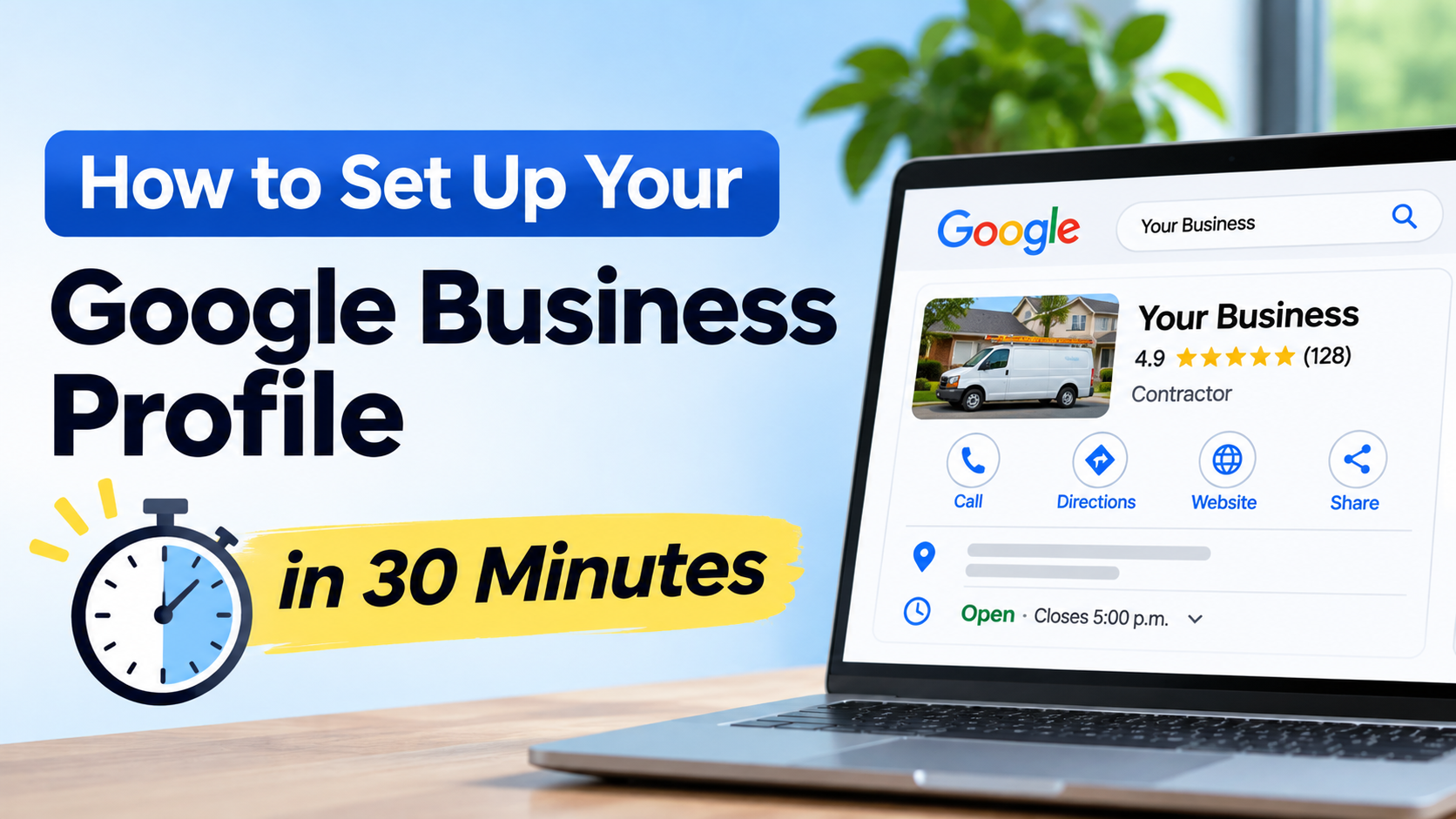
When someone searches for a plumber, a bakery, or a dentist near them, the first thing they usually see is a Google Business Profile: the box with a map pin, a star rating, photos, hours, and a button to call you. It’s free, and it’s often the first impression a new customer gets of your business.
The good news is that setting one up doesn’t take long. This guide walks you through every step in order, with a rough time for each, so you can go from nothing to a complete, verified profile. Most of it takes about 30 minutes of hands-on work. Verification can take longer because Google needs to confirm your business is real, and we’ll cover how to handle that wait.
Before You Start: Gather What You Need (5 minutes)
Having everything in front of you makes the setup much faster. Pull together:
- Your business name exactly as it appears on your sign, invoices, and business cards
- Your address, or the area you serve if you travel to customers
- A phone number customers can call, and your website if you have one
- Your hours, including any holiday hours
- A list of your main services
- A few real photos of your team, your work, and your location or vehicle
- A Google account you want to own the profile long term (a business email is better than a personal one, so you don’t lose access if someone leaves)
Step 1: Sign In and Check Whether Your Business Already Exists (2 minutes)
Go to business.google.com and sign in with your Google account. Search for your business name before you create anything new. Google sometimes builds a basic listing from public information, or a past employee, agency, or owner may have already set one up.
If you find an existing profile for your business, claim it or request access instead of making a new one. Duplicate profiles confuse customers and can cause problems with Google down the line. If nothing comes up, choose the option to add your business to Google and keep going.
Step 2: Enter Your Business Name and Choose a Category (4 minutes)
These two choices matter more than most people realize.
Your business name should match the name your business uses in the real world: on your sign, your website, your invoices, and what customers call you. Google says names that include extra information can be flagged or suspended. That means no slogans, no city names, and no stuffing in services. “ABC Plumbing” is fine. “ABC Plumbing | Emergency Drain Cleaning | Best in Town” is the kind of name that causes trouble.
Your primary category tells Google what kind of business you are, and it’s one of the strongest signals for which searches you appear in. Choose the one that best describes your main business, such as “Plumber,” “Italian restaurant,” or “Hair salon.” You can add more specific secondary categories later, but keep them honest and relevant. Fewer, accurate categories beat a long list of loose ones.
Step 3: Tell Google How Customers Reach You (3 minutes)
Google will ask whether customers visit your location, whether you go to them, or both. Your answer decides what shows on your profile.
| If you… | You are a… | What to do with your address |
|---|---|---|
| Serve customers at your location (shop, restaurant, salon, office) | Storefront | Enter your address and show it publicly |
| Travel to customers (plumber, cleaner, mobile detailer) | Service-area business | Use your address for verification, then hide it from the public and list your service areas |
| Do both | Hybrid | Show your address and list your service areas |
If you travel to customers, Google asks you to hide your address and instead list the cities, ZIP or postal codes, or regions you actually cover. Be realistic. Your service area should reflect where you genuinely work, not everywhere you’d like to. And don’t use a P.O. box or a rented mailbox as your address, since Google expects a real location where your business operates.
Step 4: Add Your Contact Information (1 minute)
Enter a phone number customers can reach you on, plus your website if you have one. Use a number that someone actually answers. A profile that sends customers to voicemail all day loses leads to the next business on the list.
Try to keep your name, address, and phone number identical everywhere your business appears online, including your website, social media, and directories. Consistency helps Google and customers trust that your information is accurate.
Step 5: Verify Your Business (3 minutes of work, then a wait)
Before your profile appears to the public, Google needs to confirm that your business is real and that you’re allowed to manage it. The verification options you see depend on your business, your category, and your situation. You might be offered one or more of these:
- Phone or text: Google sends a code you enter right away
- Email: A code is sent to a business email address
- Video: You record a short, continuous video showing your location or vehicle, your equipment, and proof you operate the business
- Live video call: A scheduled call with Google
- Postcard: Google mails a code to your address, which can take roughly one to two weeks to arrive. The code expires after 30 days, and requesting a new one cancels the old one, so wait before you ask again
Google has said its review of verification can take up to five business days. A few tips make this go smoothly:
- Follow the instructions Google gives you exactly, especially for video verification.
- Don’t make big changes while verification is pending. Changing your name, address, or category can trigger re-verification.
- For a video, film continuously without cuts: show your signage or branded vehicle, your tools or workspace, and something that proves you manage the business, like an invoice or business license.
While you wait, move on to the next steps. Most of the remaining details can be filled in as soon as you have access.
Step 6: Complete the Details That Help Customers Choose You (6 minutes)
A verified profile with nothing else on it won’t win many customers. This is where you turn it into something people want to click.
Hours. Enter your regular hours and set special hours for holidays. Wrong hours are one of the most frustrating things for customers, and they’ll head to a competitor if they find your door locked.
Services. List the services you offer, with short descriptions and prices if that suits your business. This helps customers see at a glance that you do what they need.
Description. You get room for a short description, and it’s worth writing well. Say who you are, what you do, and where, in plain language. Here’s a simple template:
“[Business Name] is a family-owned [type of business] serving [city and nearby areas] since [year]. We specialize in [main services], and we’re known for [what customers love, like on-time arrivals or honest pricing]. Call us at [phone] or book online at [website].”
Write it for customers first. Avoid stuffing it with keywords or using it for promotions, which Google’s guidelines don’t allow.
Attributes. Depending on your category, you may be able to add details such as accessibility, online appointments, or payment options. Fill in the ones that apply.
Step 7: Add Photos (5 minutes)
Profiles with real photos earn more trust than empty ones, and customers use them to decide whether you look reliable. Start with five to ten, and include:
- Your logo, so customers recognize your brand
- Your exterior or branded vehicle, so they know what to look for
- Your team, because people like seeing who will show up
- Your work, such as finished jobs, products, or the inside of your space
Use your own photos, not stock images. Your photos may take a day or two to appear after verification, so don’t worry if they’re not visible right away. Aim to add a few new ones every month.
Step 8: Grab Your Review Link (1 minute)
This step is quick, and it’s the one that makes your new profile grow. Once your profile is live, find the option in your profile that lets you share your review link (Google labels it “Ask for reviews” or something similar). Save that link. It sends customers straight to the review box, which makes it much more likely they’ll leave one.
A brand-new profile with no reviews is a hard sell, so ask your happy customers from day one. Our guides on how to ask customers for Google reviews without being annoying and 25 review request templates for SMS and email show you how.
Common Setup Mistakes to Avoid
A few errors cause most of the headaches people run into with Google Business Profiles:
- Stuffing keywords into the business name. This is one of the most common reasons profiles get flagged or suspended.
- Showing a home address when customers don’t visit you. If you travel to customers, hide your address and list your service area instead.
- Using a P.O. box, a virtual office, or a mailbox rental. Google expects a real location for your business.
- Creating duplicate profiles. Claim the existing one instead.
- Inconsistent information. Mismatched names, phone numbers, or addresses across the web make your business look less trustworthy.
- Setting it up and forgetting it. Hours change, services change, and old information frustrates customers.
Your First Week After Setup
Once your profile is live, these small habits keep it working for you:
- Send your first review requests. Text or email your last ten happy customers with your review link.
- Reply to every review, good or bad, so customers see an owner who pays attention.
- Add fresh photos from recent jobs.
- Double-check your hours and phone number by searching for your business the way a customer would.
- Look at your profile’s performance numbers to see how many calls, website clicks, and direction requests it brings in.
Over time, the number of reviews, your rating, and how recently people have reviewed you all become part of how customers judge your business. If you’re curious how that connects to local rankings, read our guide on whether Google reviews help SEO and Google Maps rankings.
Quick Setup Checklist
- Signed in with a Google account I’ll keep long term
- Searched for an existing profile before creating a new one
- Used my real-world business name with nothing extra added
- Chosen an accurate primary category
- Entered my address, or hidden it and listed my service areas
- Added a phone number someone answers, and my website
- Started verification and followed Google’s instructions carefully
- Added hours, services, a short description, and attributes
- Uploaded real photos of my team and my work
- Saved my review link and sent my first requests
Final Thoughts
A complete, accurate Google Business Profile is one of the simplest and most valuable things a local business can do. You don’t need a developer, a budget, or special skills. You need about half an hour, honest information, and a few good photos. Once it’s live, the real growth comes from keeping it active, and reviews are the biggest part of that.
If you want a steady flow of reviews without chasing every customer by hand, you can try ReviewCatch free for 14 days. It sends review requests automatically and helps you reply to reviews, so your new profile keeps building trust while you run your business.